Introduction
Many people turn on “system proxy” the first time they use v2rayN.
This is certainly the simplest approach. Import the nodes, select one that works, enable system proxy, and the browser can usually access sites that require a proxy.
The problem is that system proxy is not the same as global proxy.
The Windows system proxy is more like a shared proxy setting. If an application chooses to read it, that application uses the proxy. If it does not read it, it still connects directly.
So you may run into this situation:
1 | Chrome uses the proxy |
At that point, v2rayN itself may be working, and the node may also be working. The real issue is this: those applications never hand their traffic to the system proxy at all.
Proxifier solves exactly this problem.
It does not rely on each application supporting proxy settings, nor does it rely on each application reading the Windows system proxy. Instead, it takes over traffic at the application connection layer. You can explicitly specify:
1 | chrome.exe uses the proxy |
In other words, v2rayN system proxy solves the question of “how software that supports system proxy should use a proxy,” while Proxifier solves the question of “how the software I specify must connect.”
That is the core reason to use Proxifier:
It fills the layer that v2rayN system proxy cannot control.
In this combination, v2rayN handles nodes, protocols, and the local proxy port. Proxifier handles routing by application, domain, IP, and port.
The final logic looks like this:
1 | Application → Proxifier routing rules → v2rayN local proxy port → remote node |
Compared with using v2rayN system proxy alone, this setup is better suited to scenarios that require precise control over proxy behavior. It does not assume every application will obey the system proxy. Instead, it tells each application directly: you use the proxy, you connect directly, and you are blocked.
This is the value of the Proxifier + v2rayN combination.
You may ask: why not just use v2rayN TUN mode?
TUN mode works by creating a virtual network adapter in the system. All system traffic is forwarded through that virtual adapter, which naturally solves the problem of some programs being unable to use a proxy.
But based on my long-term testing, under high CPU load, the virtual adapter created by TUN mode may suffer degraded performance, which leads to network latency.
Proxy forwarding through a local port, by contrast, has extremely low overhead and helps preserve network performance.
How Proxifier Works
The core role of Proxifier is not to “provide proxy nodes.” Its role is to take connections initiated by Windows applications, especially TCP connections, and forward them to a specified proxy server according to rules.
Under normal circumstances, if a piece of software wants to use a proxy, it must either support proxy settings itself or read the Windows system proxy. Many applications do not do this, including some launchers, games, command-line tools, and older desktop clients.
Proxifier solves exactly that problem:
1 | Application → Proxifier → proxy server → target website |
It can decide how a connection should be handled based on rules:
1 | chrome.exe → use proxy |
Proxifier rules can usually match these conditions:
- Application: for example,
chrome.exe,Code.exe, orgit.exeext - Target domain: for example,
*.github.comext - Target IP: for example, an intranet or LAN address
- Port: for example,
80,443, or22ext - Action: Proxy, Direct, or Block
So the essence of Proxifier is this:
It is a Windows application-level traffic router.
Its strength lies in per-application control. You do not need to force all software through a proxy, and you do not need to depend on each application’s own proxy settings. You control everything centrally in Proxifier.
One thing to note: Proxifier itself does not understand proxy protocols such as VLESS, VMess, Trojan, or Reality. It usually accepts standard proxy types such as SOCKS5, HTTP, and HTTPS. Therefore, it needs an upstream proxy service.
In this setup, that upstream proxy service is the local proxy port opened by v2rayN on the same machine.
How v2rayN Works
The core role of v2rayN is to manage proxy nodes and provide a usable local proxy entry point on the machine.
It mainly does the following:
1 | Import subscriptions |
For example, when you import a VLESS Reality node, ordinary software cannot directly understand that node format. v2rayN calls an Xray or sing-box core to handle the node, then opens a proxy port on the local machine.
A common form is:
1 | 127.0.0.1:10808 |
This address means:
1 | 127.0.0.1 = local machine |
The port number is not fixed. Use the port shown in your own v2rayN settings.
The v2rayN data path roughly looks like this:
1 | local proxy request |
So the essence of v2rayN is this:
It is a node manager and local proxy service provider.
It converts complex remote proxy protocols into a standard proxy entry point that Windows applications can use locally.
That is why Proxifier can work with v2rayN: Proxifier does not need to understand node protocols. It only needs to forward traffic to v2rayN’s local port.
Practical Setup
This article assumes that you have already imported nodes into v2rayN and confirmed that the selected node can connect normally. The steps below focus only on how to connect Proxifier to v2rayN’s local port and set up routing.
Set the Proxy Server
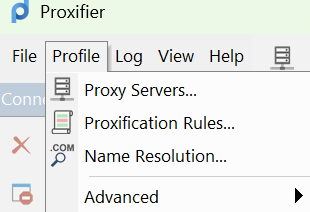
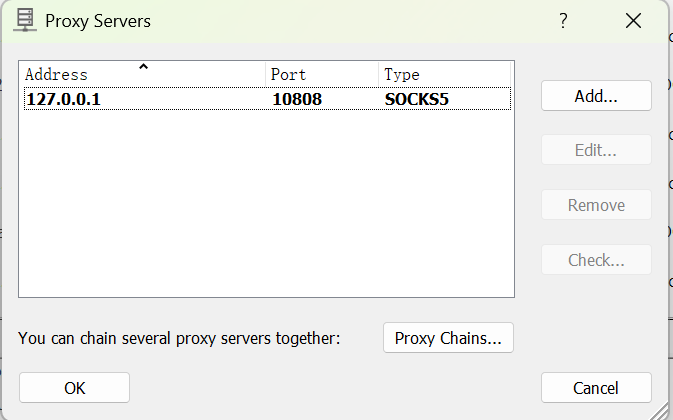
1 | Profile → Proxy Servers → Add |
Fill in:
1 | Address: 127.0.0.1 |
Set Proxy Rules
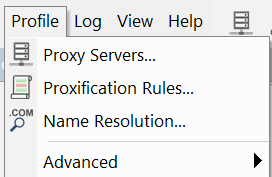
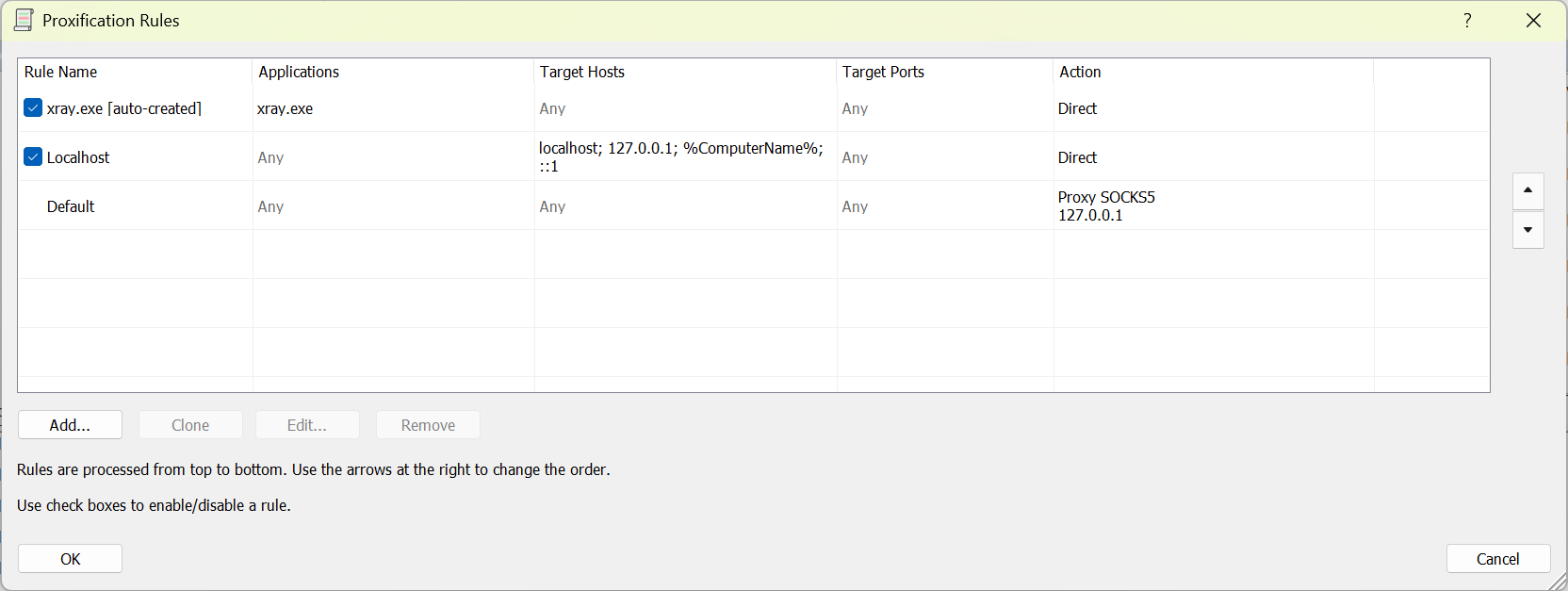
1 | Proxification Rules → Add |
Set three default rules:
| Rule Name | Applications | Target Hosts | Target Ports | Action |
|---|---|---|---|---|
| xray | xray.exe |
Any | Any | Direct |
| Localhost | Any | localhost; 127.0.0.1; %computerName% |
Any | Direct |
| Default | Any | Any | Any | Proxy SOCKS5 127.0.0.1 |
Note: Localhost and xray.exe must connect directly, because v2rayN’s local proxy port is on 127.0.0.1. If Proxifier sends the local loopback connection or the proxy core process back into the proxy again, it creates a proxy loop. The typical symptoms are failed network access and repeated connection logs.
Set DNS Proxy Resolution
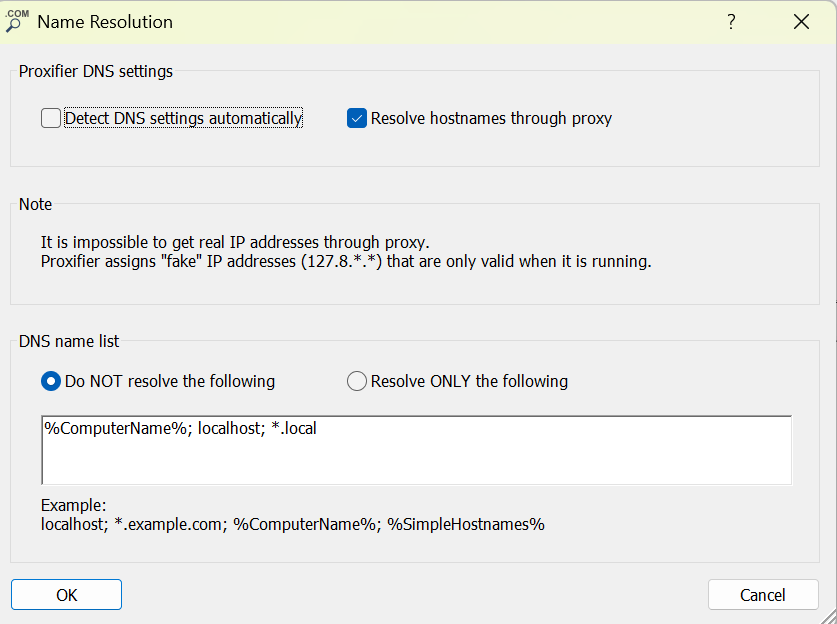
1 | Name Resolution → Resolve hostnames through proxy → Do NOT resolve the following: %ComputerName%; localhost; *.local |

Finally, clear the system proxy in v2rayN settings.